

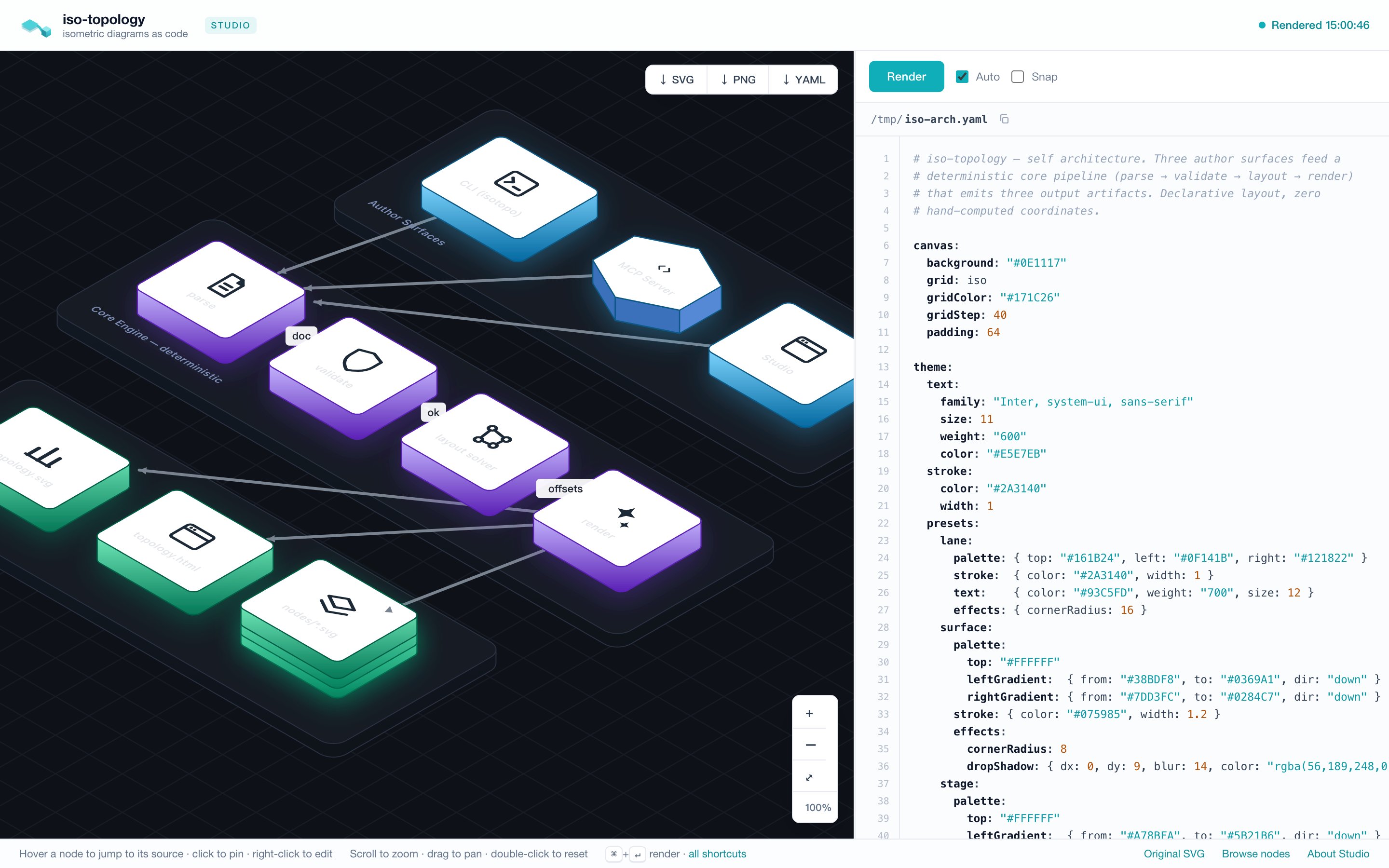
isotopo serve (and, in a
degraded static form, from every isotopo render output as
topology.html). One file, one canvas, sub-second feedback: the YAML
on the right, the rendered isometric scene on the left, and a live
bidirectional mapping between them — now with direct manipulation
(drag to move, right-click to edit) on top.
Why it exists
iso-topology is agent-first: most diagrams here are written by a coding agent against the DSL contract. But the loop only closes when a human can look at the result, point at a node, and say “make this one violet”. Studio is that pointing device. It grew out of three design positions:- Accepted source is the persistent document. In
servemode, accepted edits auto-save to the bound local file; external file changes reload in the editor. A segment-drag preview does not change the editor source, disk file or undo history. Statictopology.htmlkeeps a local draft and requires a running server for direct manipulation. - Source and canvas are the same thing seen twice. Hover a node or edge → its YAML block highlights and scrolls into view. Click it → the highlight pins (click again, or the empty canvas, to unpin). Put the caret inside a block → the node glows. Click a validation error → the offending line flashes. If you can see it, you can find it — in either direction.
- Local-first, zero cloud. Studio is a single self-contained HTML page served by the same static binary that renders your diagrams. No accounts, no telemetry, no build step.
Direct manipulation
Studio is not just a viewer — you can lay the diagram out and restyle it by hand, drawio-style, and every gesture writes back to the YAML (comment- and format-preserving) and re-renders.Move a node
Drag any node. The cursor readsmove (4-way) on hover and grabbing
while dragging; connectors docked to that node follow it live so
the line never lags behind the gesture. On release the node lands
exactly under the cursor.
The first manual drag freezes the scene into explicit coordinates
and drops auto-layout — the drawio model. From then on the engine
never re-decides positions: every node sits where you put it, and you
own the layout. (Until that first drag, the diagram is whatever the
layout engine produced.)
Connect specific ports
Hover a node to reveal its connection ports. Drag a port to another node; the target ports appear and the preview snaps to the nearest one. Release to create the connection. The selected displayed instance is retained, including an upper stack replica, and one undo removes the new edge. These gestures write explicitport-left, port-back, port-right, or
port-front references with orthogonal2 routing. They work in isometric
and plan views; switching projection keeps the source reference. Fixed
ports use the body contour in isometric view and footprint sides in plan
view. Dashed port outlines mark the approximate array/rack envelope.
Text-only parts retain legacy anchor behavior. Existing authored face
anchors are not rewritten. Plan connection creation is supported; plan
segment dragging is still pending.
Move an edge — one segment at a time
In isometric view, drag a visible segment or its circular handle. Horizontal legs move along their perpendicular world axis; vertical risers move in the XY plane. Heights and docked endpoints are preserved. Dragging an endpoint leg retains a short lead at the port. The savedwaypoints3d field records
absolute world coordinates, and subsequent edits preserve this 3-D intent.
The server computes the complete preview. Release commits that exact result
and creates one undo step; requests are coalesced so a late response cannot
replace a newer preview. Escape, switching projection, changing the source,
or losing window focus cancels the gesture. A failed request preserves the
source and both undo and redo histories. Preview requests do not save files;
the normal serve auto-save follows a successful commit.
A transparent hit corridor keeps thin lines easy to grab without changing
their visible width; it stays in the line’s painter layer. Handles appear
only on mapped, uncovered portions of the actual path.
Ambiguous projected overlaps are not independently editable. At a crossing or
an equally close pair of segments, move the pointer along the intended segment
until it is distinct; zooming in also helps separate close paths. Handles only
appear where their own midpoint identifies a unique visible segment. Clipped
away portions do not block editing the remaining path. A stale diagram
must be rendered before editing its segments. Curved/straight edges retain
bend editing, and plan segment dragging remains pending. Manual corners can
still route through a body; this gesture does not promise obstacle avoidance.
Cursors & affordances
Toggle Snap in the toolbar to round dragged nodes to the grid (one
cell). Every structural edit — drag, detail edit, add/duplicate/delete —
is undoable with ⌘Z / ⌘⇧Z (when focus isn’t in the editor).
Right-click menu
Right-click an element for a context menu:- node → Edit details · Duplicate (clone with a fresh id) · Delete
(also removes its connectors and frees any sibling
place:d against it) - container (a group/lane with nested parts) → Edit details only. Duplicate/Delete are hidden: cloning would collide the children’s ids, and deleting would wipe the whole lane. Edit those in the YAML pane.
- edge → Edit details · Delete
- empty canvas → + Add node (a default rectangle) · Edit details (the canvas background/grid)
ApplyOp refuses a container
duplicate/delete), so embedders get them too.
Drag a node between groups. Dropping a node onto a group’s slab moves it
INTO that group; dropping it on the bare canvas moves it OUT to the scene root.
The re-home rewrites the DSL hierarchy and drops the node’s old offset so the
new parent lays it out — an in-group nudge (same parent) is unaffected.
Edit details
Edit details — double-click an element (or right-click → Edit details) — opens a modal of its visually-relevant properties. Change them, hit Update, and both the canvas and the YAML update for that element only. The form is schema-driven: each editable DSL key is declared once with an English label, a one-line description, an input type, and the raw dotted key (shown in muted monospace beside the label, so the friendly field stays anchored to the source). Highlights:- Tabbed, master-detail layout — fields are grouped and split into tabs down the left rail; the selected tab’s fields show on the right, so you see one small group at a time instead of one long scroll. A node’s tabs read Content → Size → Position → Layout (containers only) → Fill → Gradients → Border → Label → Effects. Switching tabs keeps unsaved edits in the others — Update writes every change across all tabs at once.
- Shape-aware sections — the colour groups depend on what the shape can render: the box family gets Fill — faces (top/left/right) plus per-face Gradients; a flat text node gets only its label; a boundary gets its dashed border; containers (group/composite) gain a Layout — children group (mode / gap / columns).
- Empty fields show their effective value, not a bare blank — an
unset field is hinted with what the canvas actually uses, so it never
reads as “missing”. The verb tells you where the value comes from:
inherits …(a colour/size/weight from a preset or the theme),auto …(a width/depth the layout solver computed for a container), ordefault …(a connector’s built-in routing/stroke). The editable value stays empty, so an untouched field keeps deferring; type a value to override. Fields that are genuinely off (no glow, no pattern, opacity 1) stay blank with no hint — empty there means empty. - Icon color — a tint picker for
iso://glyph and logo icons (the color lives in the ref suffix, e.g.iso://glyph/cpu/7C3AED; the picker writes it for you, blank reverts to default ink). It is a no-op for image-URL / local-file icons, which carry their own colors. - Illustrated choices — enums render as tiles with a glyph, not bare words: node shape (cube / cylinder / circle / cloud / person / hexprism / octprism / …), canvas grid (iso / dots / hatch / solid), edge arrowhead, routing (orthogonal / straight / bezier), and edge line style (solid / dashed / dotted).
- Colors get a native picker plus a free-text field (any CSS color).
- Icon takes an
iso://…ref, an image URL, or a local file via Browse… — the picked file is embedded as a data URI so it renders on the canvas and exports standalone. A local file path in the YAML is also inlined at render time.
canvas: block if your file doesn’t have one yet).
The rest of the surface
Keyboard map lives behind
? (or the “all shortcuts” footer link).
Static degradation
isotopo render out/ writes the same page as out/topology.html.
Opened as a file it keeps everything except live operations — the
status reads “Static file” and Render/move/edit are disabled until you
point isotopo serve at the source. Exports still work.
Endpoints (for tooling)
screenLabels comes from the same emission as svg; its record fields follow
the emitted scene contract.
Studio uses the recorded pointer rectangles for bound-font label selection,
applying each group’s current screen transform so zoom, pan and live drag
remain aligned. It caches the identity mapping per committed SVG. Unknown
fonts, older servers and mismatched records retain the browser geometry
fallback. An empty array means that this render has no isometric screen-label
layer; switching projection clears prior records.
The edit endpoints listed above do comment-preserving text surgery on the YAML
you POST and leave the file on disk untouched. They are a thin HTTP layer over
the stateless Go edit contract (ApplyOp / EditOp / RenderSource):
an embedder building a non-HTTP UI (desktop, WASM) can call those
directly instead of re-serializing JSON — see the API reference.
Studio separately uses POST /api/save to persist its current source, including
automatic saving after a successful UI edit. Calling a render/edit endpoint
alone does not invoke that save path.
How it’s built
The page is assembled at compile time from three embedded assets, so the binary stays single-file while the front-end is ordinary, lintable code:How it’s tested
tools/viewer-test/cdp_test.py drives headless Chrome over CDP and
asserts the surface end-to-end. Run it whenever the studio/ assets or
the serve handlers change: